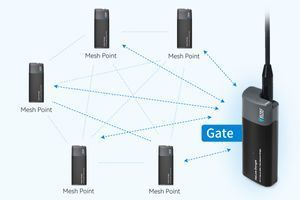
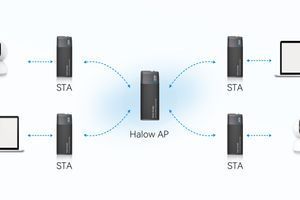
The HT-HD01 provides a "plug and play" mode so you can start using the device more quickly. The devices are pre-paired at the factory, so they can be used right away without any configuration.
Connect the AP-side device to your network source (e.g., your router). Once powered on, the STA-side device will provide connectivity to your end devices via Ethernet or 2.4GHz Wi-Fi.
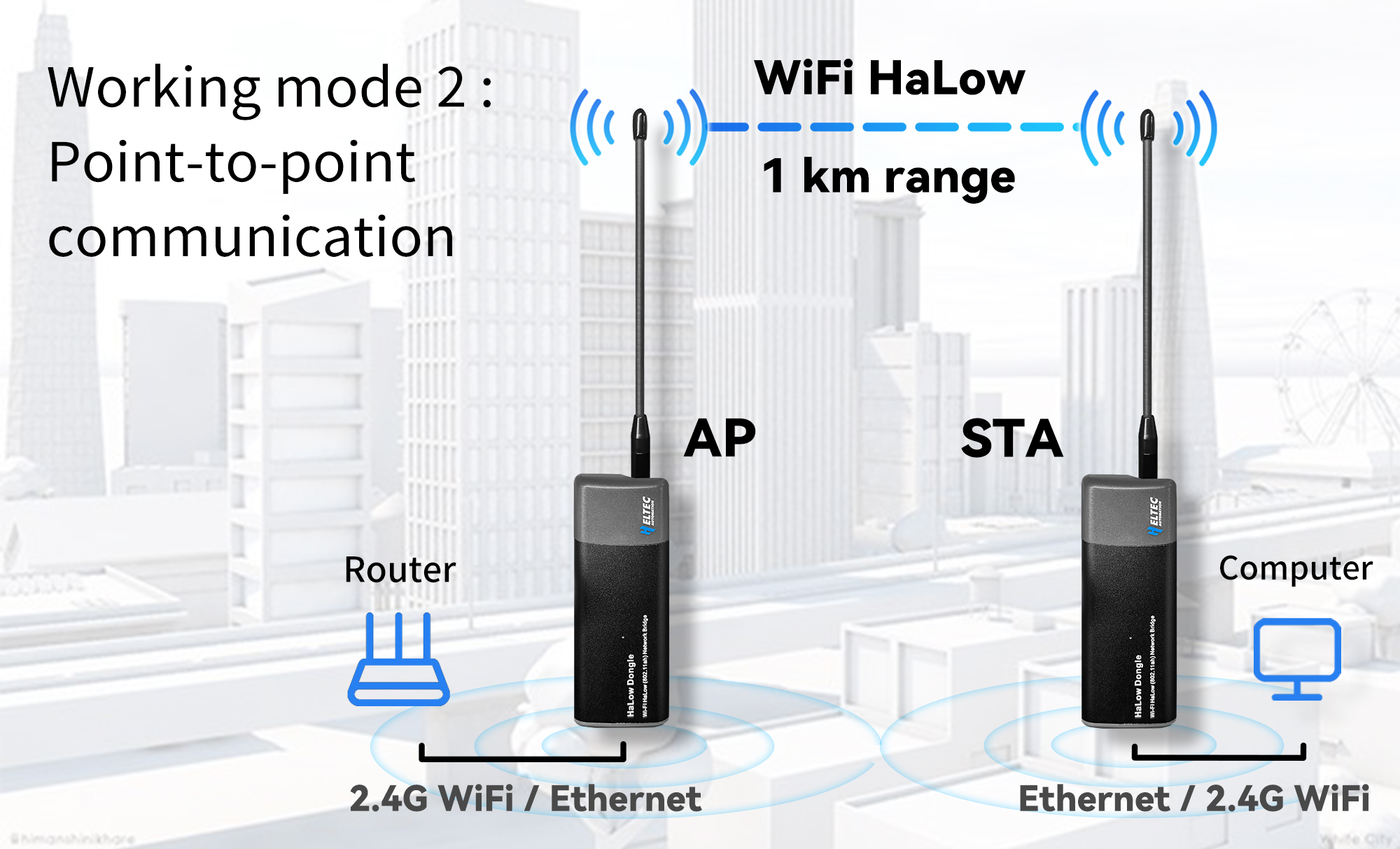
How to Distinguish AP Mode from STA Mode
- By label — the AP or STA side can be identified by the labels on the housing.
- By RGB indicator — starting from firmware version 2.6.6, devices can also be distinguished by the color of the RGB light: on AP-side devices, the light turns blue/purple after the red light goes off, while on STA-side devices it turns blue/green.
Starting the Access Point
-
Connect the Dongle-AP to your upstream router and power it on.
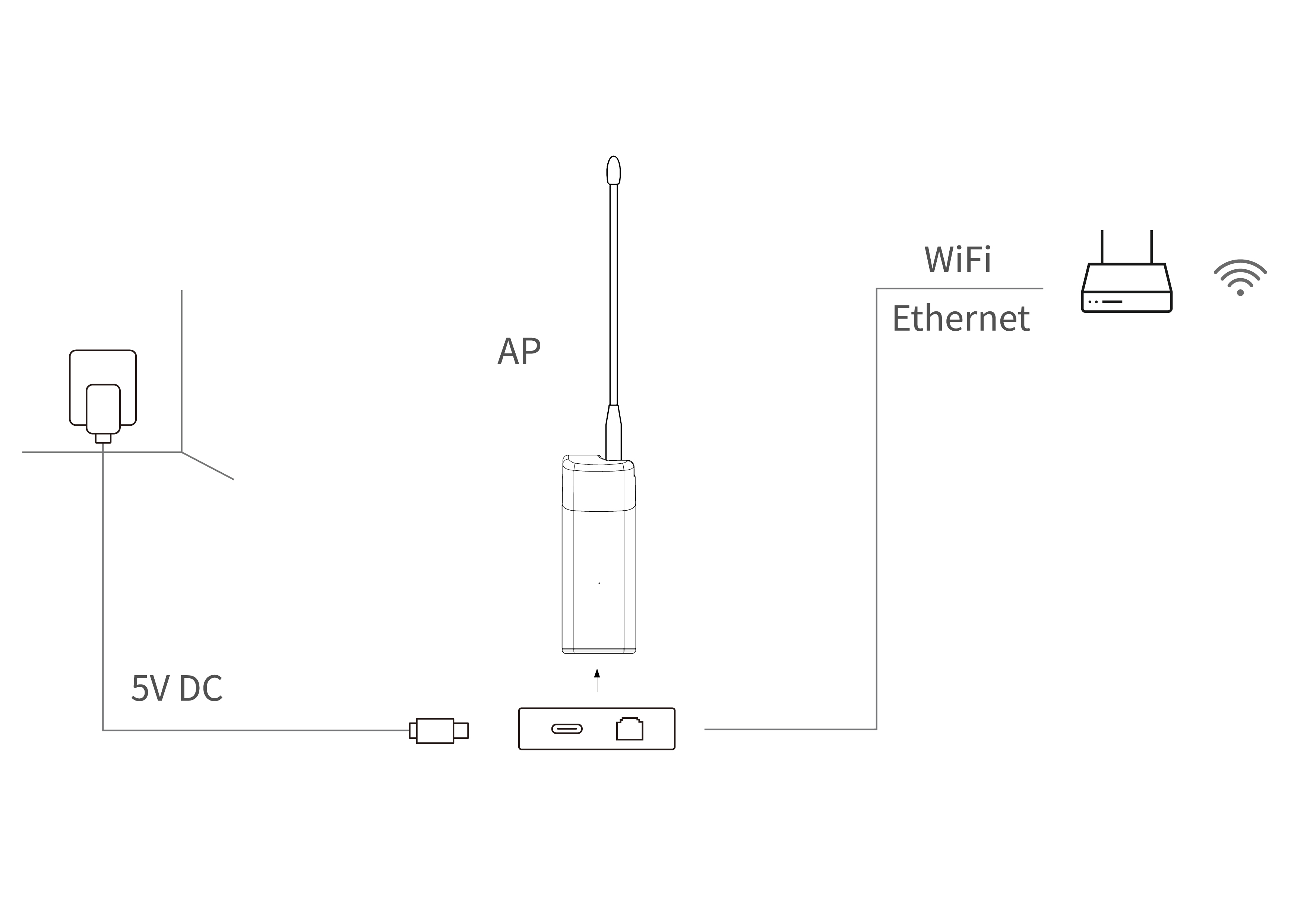
Tip: The RJ45 port does not support PoE (Power-over-Ethernet). The USB cable provides both power and network connection.
Tip: If your upstream network is Wi-Fi, you'll need to enter the Wi-Fi credentials (SSID and password) on the configuration page.
2. When the device's red indicator changes to blue/purple and stays on steadily, this means the device is working correctly.
Starting the Station
Power on the Dongle-STA. When the device's indicator changes to blue/green and stays on steadily, this means the device is working correctly.
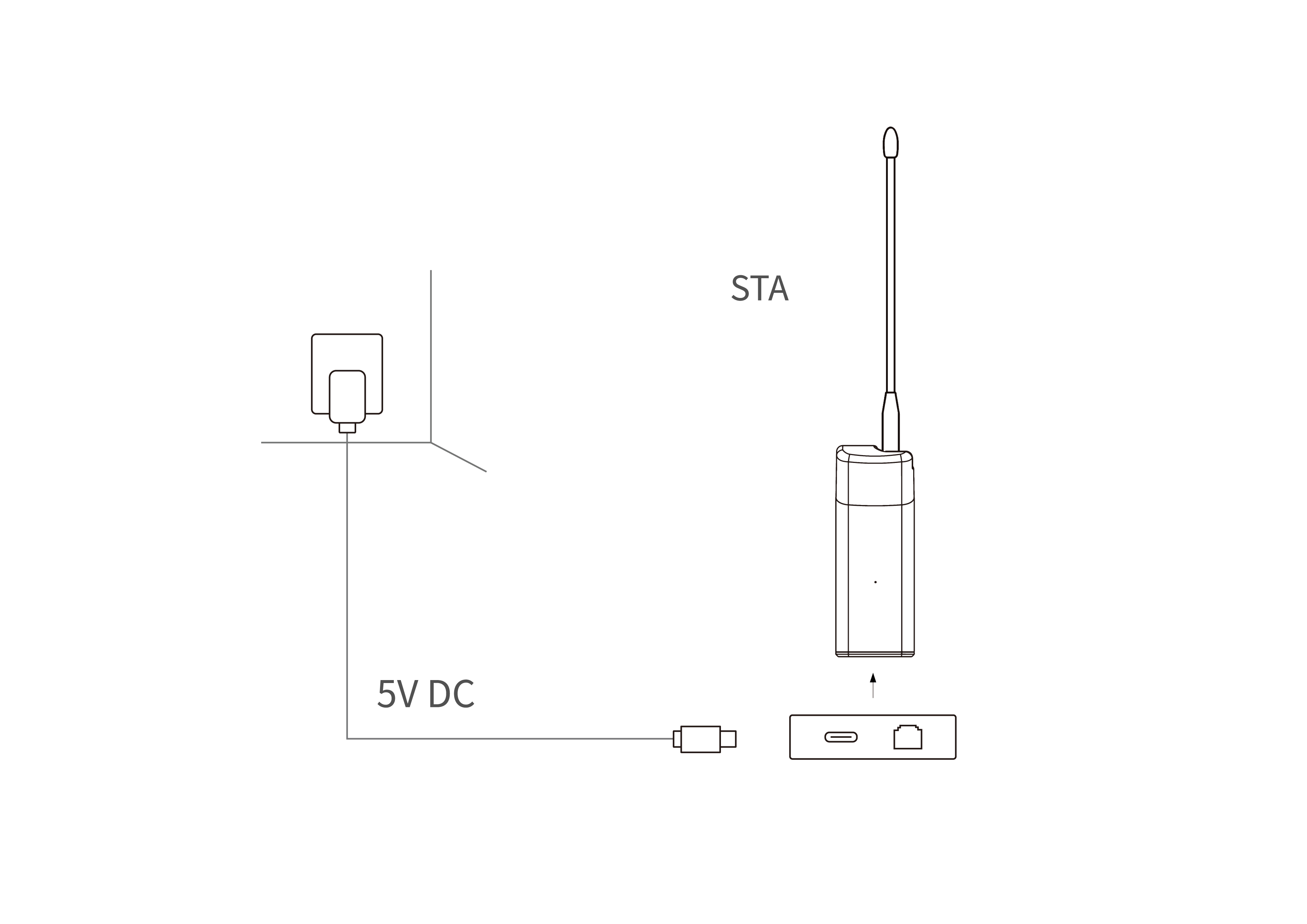
Tip: If the STA device's indicator keeps blinking blue/green, this means the device has not received an IP address from the AP. In this case, you may need to reconfigure the device.
Getting Started
Once the STA device is working normally, connect your end device to the Dongle-STA via an Ethernet cable or 2.4GHz Wi-Fi.
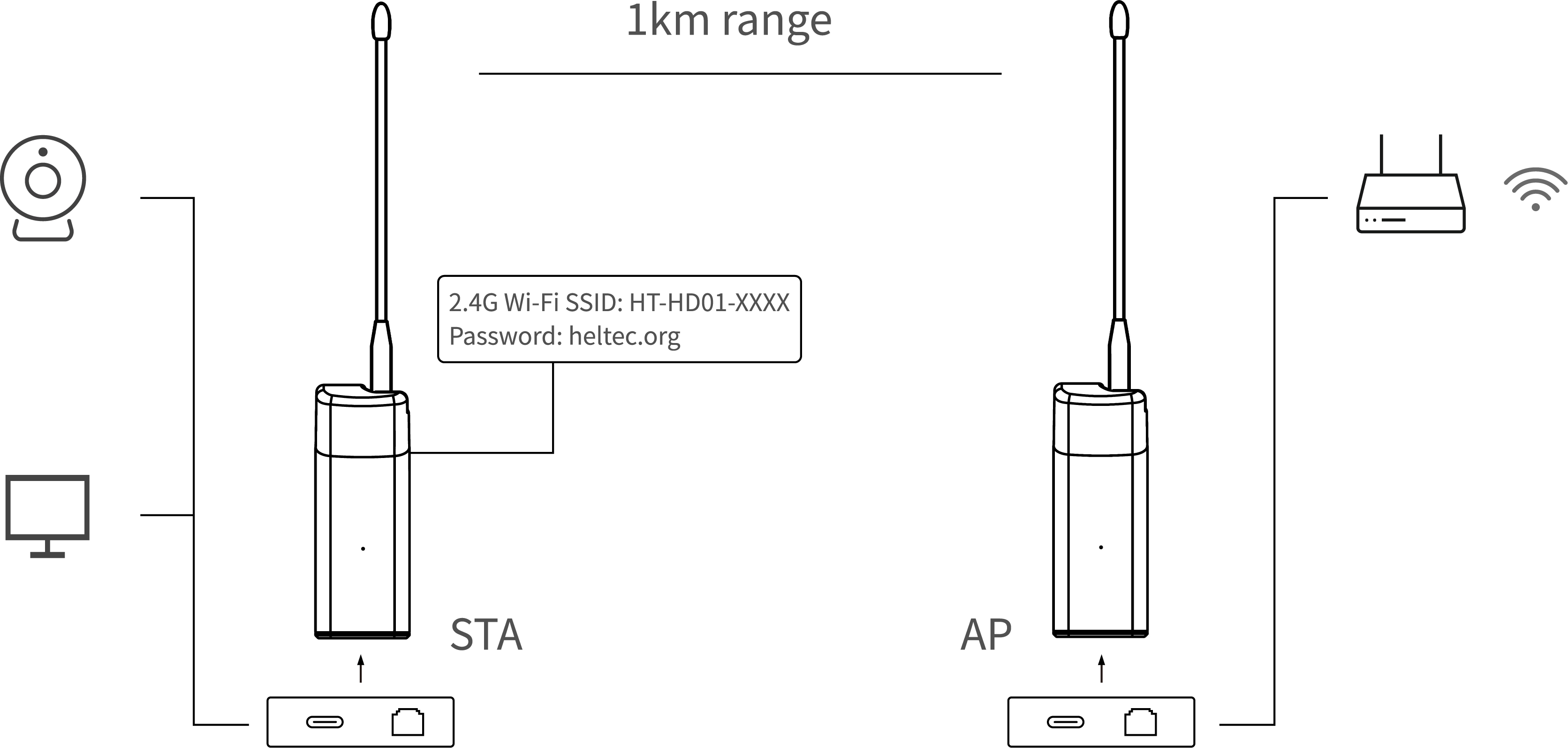
Ethernet
A blue indicator on the STA device corresponds to the USB-C cable, while green corresponds to the RJ45 cable. If the indicator color doesn't match the type of network cable connected, you'll need to change the indicator color by pressing the button.
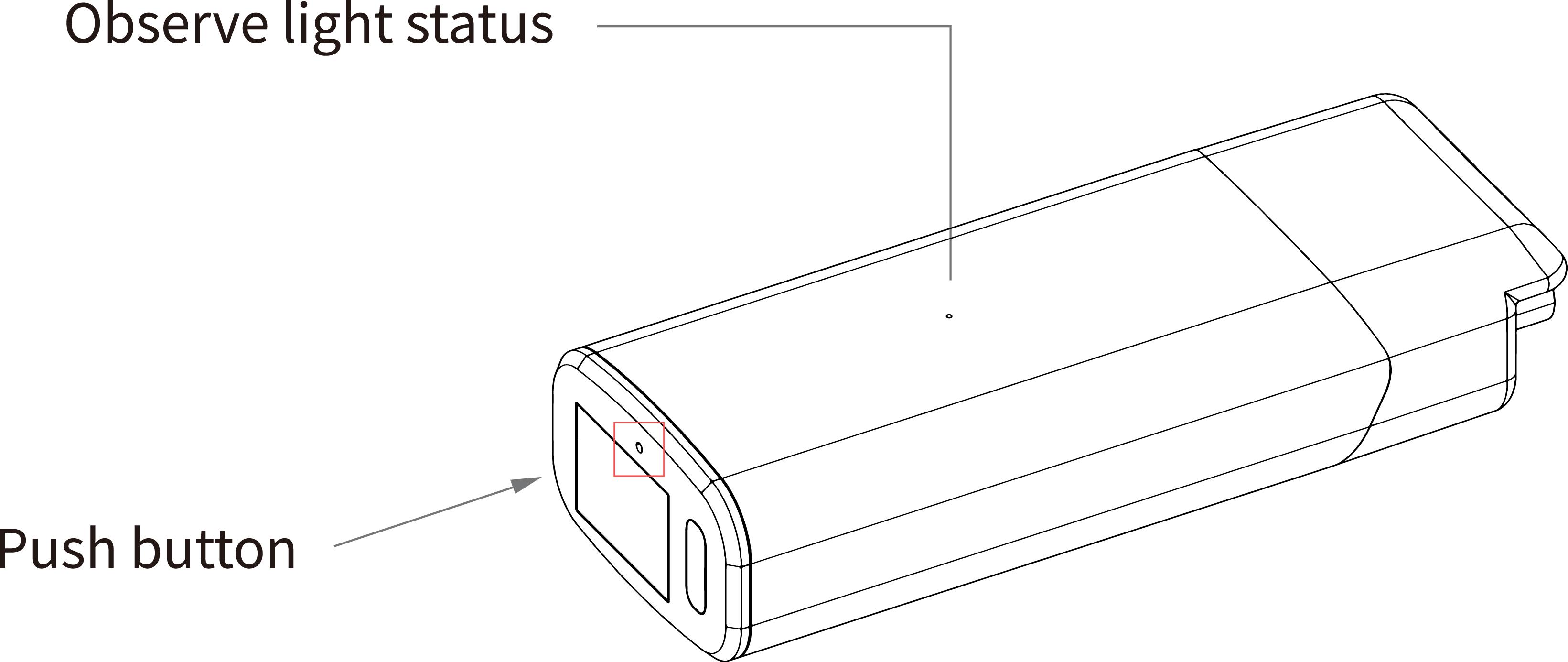
For Windows systems, you'll need to install a driver for the USB-C Ethernet connection to work:
Tip: If the device doesn't respond after installing the driver, toggle the switch shown in the image above a few times — this will help the computer recognize the device.
Other Modes
Other operating modes and how to configure them are described in the Blog section.
Viewing and Changing SSID and Password
You can open the device's configuration page to set or change its parameters.
Factory Reset
⚠️ Warning: In this mode, all existing device settings are completely erased. You'll need to reconfigure the device before further use.
-
Press and hold the button on the device for 10 seconds until the white indicator turns on, then release the button. After that, the orange and green (blue) indicators will start blinking alternately, indicating the device has entered reset mode.
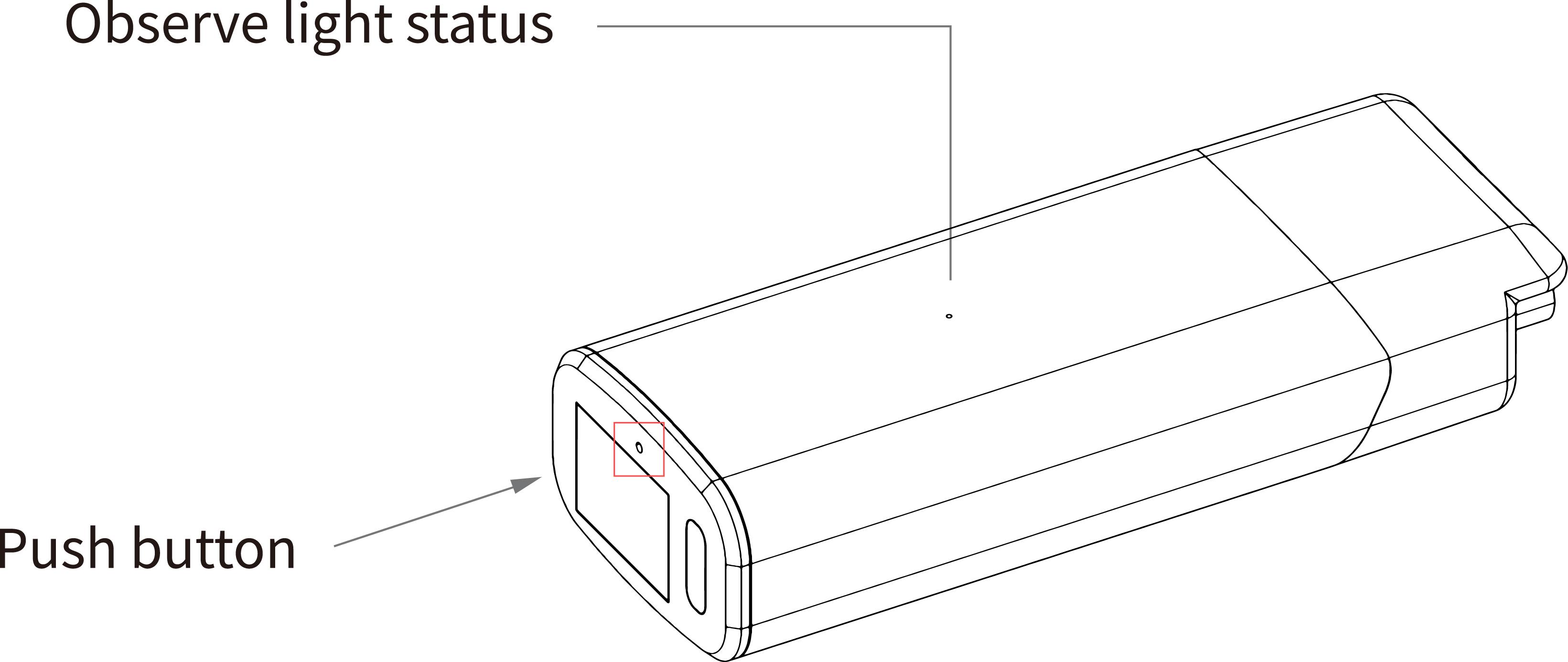
2. The device will now create a separate access point (AP) for configuration. The default SSID is HT-HD01-xxxx, and the default password is heltec.org. Connect your computer (laptop) to it.
3. Open 10.42.0.1 in your browser. The default login is root, and the default password is heltec.org.
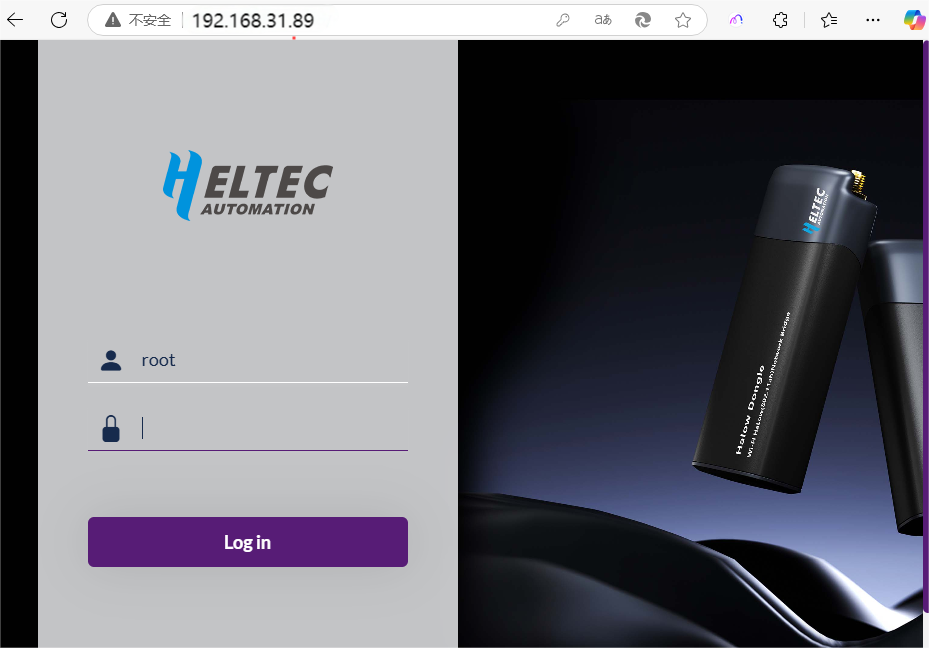
4. Follow the instructions and prompts on the configuration page to complete all steps of the process.